Script Gallery
The Script Gallery is the central hub for browsing and launching your automation library. It displays the contents of your Active Script Source.
You cannot load standalone .cs files into the gallery; they must reside within a valid Script Source to be discovered and managed.
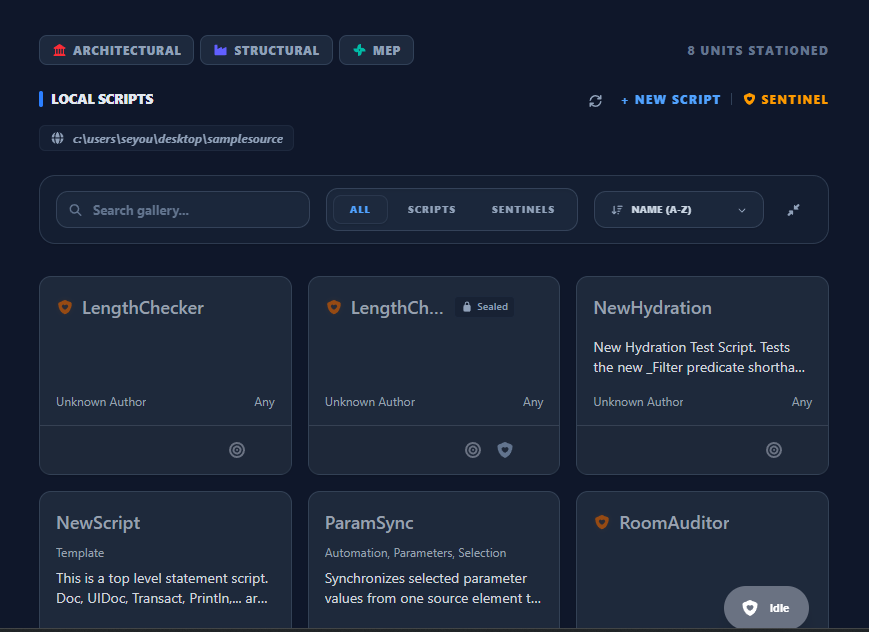
Active Script Source
Paracore allows you to load multiple Script Sources (folders) into your library, but the Gallery focuses on one source at a time.
The "Local Sources" Dropdown
Located in the Sidebar, this dropdown acts as your library switcher:
- Switching: Selecting a different folder from the dropdown instantly repopulates the Gallery with that folder's contents.
- Isolation: This ensures that scripts from different projects or sources don't clutter your view.
- Persistence: Paracore remembers your loaded folders across sessions.
Native Renaming
You can rename any script project directly from the Gallery using the Rename button on the script card.
⚠️ IMPORTANT: Renaming & VS Code
If you rename a script project while it is open in VS Code, the IDE will notify you that the folder has moved or been renamed. You can simply re-open the project from the Gallery to refresh the workspace link.
Category Filtering
Filtering relies entirely on the Categories field in your Script Metadata.
1. Default Category Checkboxes (Header)
The top of the gallery provides three "Quick Isolation" checkboxes: Architecture, Structure, and MEP.
- Logic: Checking a box immediately isolates scripts that have that specific category in their metadata.
2. Custom Categories
Use the "+" button under Custom Categories in the Sidebar to create your own filters. Once added, you can toggle them on or off with a single click.
Advanced Search & Pills
The search bar supports advanced prefix-based queries. When you enter a valid search term, Paracore creates a Search Pill.
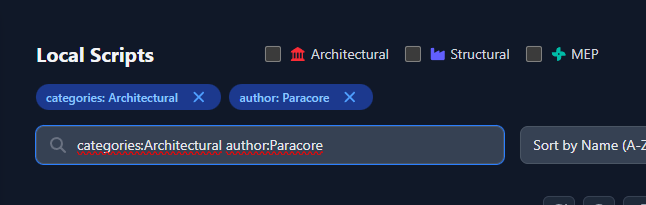
Search Prefixes
| Prefix | Description | Example |
|---|---|---|
author: | Filter by script author | author:John |
categories: | Filter by any category | categories:Audit |
param: | Search scripts with specific parameters | param:Width |
Focus Mode
Focus Mode centers the selected script and hides the rest of the gallery, providing a distraction-free environment for repetitive execution.
How to enter Focus Mode:
- Locate the Focus Action Button (🎯) at the bottom-right of any script card in the gallery.
- Hover over it to see the "Focus View" tooltip.
- Click the button to isolate the script.
How to exit Focus Mode:
- While in Focus Mode, locate the Exit Focus button at the bottom-right of the enlarged script card (in the same position as the entry button).
- Hover over it to see the "Exit focus mode" tooltip.
- Click it to return to the full gallery.
CommandConsole (Gallery Management)
The CommandConsole is the unified toolbar located at the top of the Gallery. it provides real-time control over how you browse and organize your library.
- Searchbox: Perform instant text-based searches. Valid queries are automatically converted into Search Pills for advanced filtering.
- Type Toggles: Three dedicated buttons to filter the gallery by distribution type:
- All: Shows every automation in the current source.
- Scripts: Highlights editable C# source code projects.
- Sentinels: Isolate background monitoring tools ("Watchdogs").
- Sort & Filter: Reorder your scripts instantly based on Date Created, Name, or Modification Date.
- Display Modes: Toggle between Compact and Expanded view modes. Compact mode maximizes the number of visible tools, while Expanded mode displays full script descriptions and metadata.
Next: Learn about configuring inputs in the Script Inspector.