Active Data Workflows
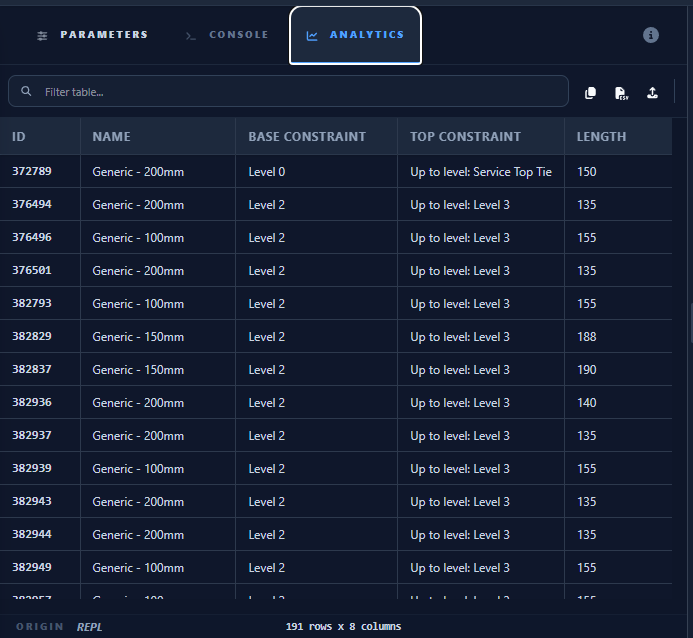
Paracore V4.1.0 transforms script results into an interactive Active Data Grid. This allows you to manage Revit data directly from the UI, bridging the gap between automated extraction and manual model correction.
The Active Results Table
The results table is a high-performance workstation designed for high-density data management.
Key Interactions:
- Sticky Persistence: Table headers remain locked at the top, and the horizontal scrollbar is permanently pinned to the bottom edge of your screen, ensuring effortless navigation through thousands of rows.
- Dynamic Resizing: Hover over column edges to drag and resize headers. You can shrink columns beyond their text length to maximize information density.
- Smart Tooltips: Hover over any truncated cell or header to see the full content in a high-contrast, borderless tooltip.
- Direct Selection: Click on any Id cell to instantly select and highlight the element in the Revit model.
Bi-Directional Editing
Paracore supports real-time synchronization between the UI and your Revit model.
Single-Cell Updates
- Double-Click: Open any data-centric cell (e.g., Room Names, Comments, Mark) for editing.
- Edit Value: Type the new value.
- Commit: Press Enter or navigate away. Paracore immediately executes an Atomic Transaction in Revit to update the parameter.
- Data Integrity: Paracore ensures that Revit-grade accuracy (e.g.,
6.00remains6.00) is preserved throughout the edit.[!NOTE] Geometric parameters like Length, Width, and Area are Read-Only in the Analytics Tab, as they are managed by Revit's modeling engine. To automate or modify geometry, use the Script Gallery to create a custom C# tool with full Revit API access.
CSV Mass-Editing (Data Workflow)
For large-scale updates, you can leverage external tools like Excel:
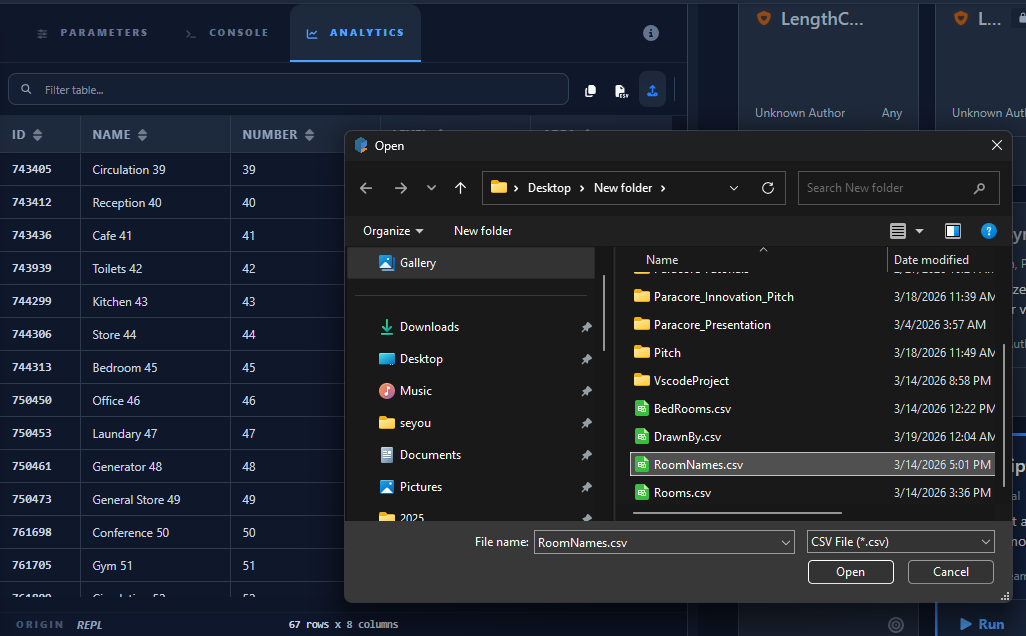
- Export CSV: Use the Download CSV button in the table toolbar.
- Bulk Edit: Open the file in Excel, fill in Room Names, Comments, Marks, or finishes.
- Import CSV: Click the Upload CSV button in Paracore.
- Automatic Mapping: Paracore uses the Id column to map CSV rows back to the correct Revit elements.
- Batch Execution: All changes are applied to the model in a single, efficient transaction.
Smart Parameter Mapping
The Mass-Edit engine is designed to handle complex naming conventions generated by the Visual Query Builder:
- Disambiguation: Correctly handles parameters that share names (e.g., "Comments" on both Instance and Type).
- Prefix Safety: Automatically translates C# identifiers (e.g.,
WallMark) back to Revit-compliant names (Mark).
Active Data Workflows turn Paracore into a high-speed data entry and validation hub for Revit.