The Sentinel Control Window
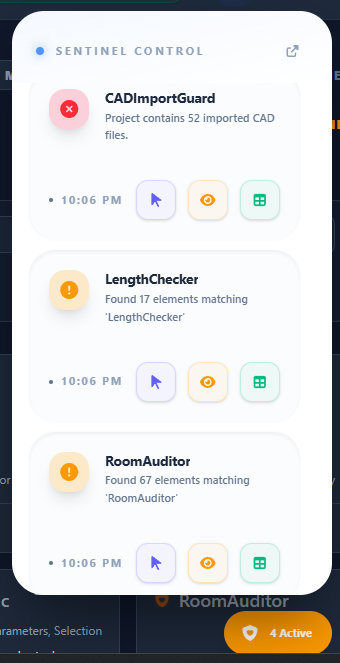
The Sentinel Control Window (also known as the Watchtower) is your central dashboard for BIM Quality at the Source. It provides a real-time, high-contrast overview of every active compliance breach in your model.
Surgical Inspection Tools
When a Sentinel identifies a breach, the Control Window provides three primary actions to help you resolve the issue immediately:
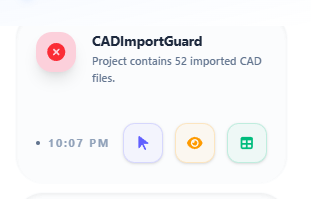
1. Select
Instantly selects the offending elements in Revit. This is the fastest way to identify exactly which elements are triggering a warning.
2. Isolate
Apply a temporary isolation (Hide/Isolate) to the identified elements. This removes visual clutter and allows you to inspect the breach in its spatial context without permanent view changes.
3. Show in Table
Draws the identified elements into Paracore's Active Data Grid. This allows for:
- Mass-editing parameters to fix the breach.
- Exporting the list to CSV for reporting.
- Advanced filtering and grouping of the identified issues.
The Detached Workspace
A key feature of the Control Window is its ability to be detached from the main Paracore interface.
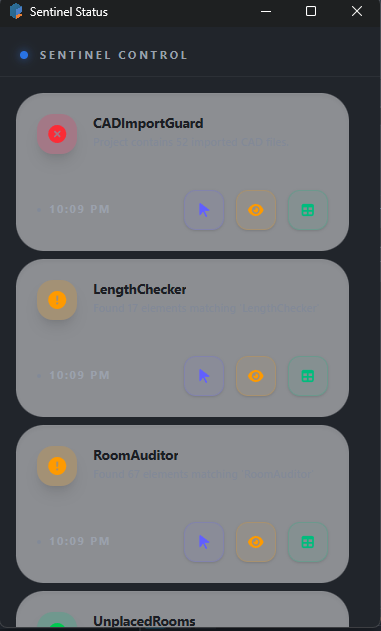
- Persistent Visibility: The detached window stays on top of the Revit workspace even when Paracore is minimized or moved to another monitor.
- Side-by-Side Drafting: You can keep the "Watchtower" visible on a secondary screen, providing a permanent health-check while you continue to model in Revit.
- Multi-Monitor Pro: Professionals often keep the main Paracore window for authoring and a detached Sentinel window for constant model monitoring.
The Control Window turns model auditing from a passive report into an active, surgical workflow.