Your First Script
In this guide, you will load the Paracore Examples library, configure dynamic parameters, and execute your first automation. Note: The "TwistingTower" script used here is just to demonstrate Paracore's capabilities. Don't worry about understanding its code yet! We will start from scratch in the Tutorials.
Understanding Units: If you use the
[Unit]attribute for a parameter, the engine automatically converts the user's input to Revit internal units (Feet). You don't need to manually convert these values in your logic. However, for output/display (like printing a wall's length in meters), you must convert from internal units to your target unit.
Goal
Experience Dynamic Execution in action. Run a pre-made script to see how Paracore provides a streamlined environment for parameter orchestration, logic compilation, and instant code execution.
Steps
1. Connect to Revit
- Open Autodesk Revit 2025+.
- Go to the Paracore tab in the ribbon.
- Locate the Paracore Server button (it will initially show Off).
- Click the icon. The label will change to On and a Revit TaskDialog will appear confirming the connection.
- Close the TaskDialog.

2. Launch Paracore Desktop App
- Open the Paracore Desktop App.
- Ensure the top bar shows a green Connected status.
3. Add the Script Source
- Download Examples: Download or clone the Paracore-Examples repository to your computer.
- Add Local Folder: In the Paracore Sidebar, click the "+" button under Local Folders.
- Select the Folder: Navigate inside the repository folder and select the
01_Getting_Starteddirectory.- Important: Do not select the root 'Paracore-Examples' folder. You must select a specific sub-folder (Script Source).
- Click Select Folder. The "TwistingTower" script will appear in the Gallery.
v3.0.3+: You can select the root Paracore-Examples folder directly. Paracore will automatically discover all script sources inside it (folders containing a .paracore marker file). Switch between sources using the Script Sources dropdown in the Sidebar.
4. Configure Parameters
- Click on the TwistingTower card.
- In the Script Inspector, ensure the Parameters tab is active.
- Click the Compute (🔄) button next to the BaseLevel and WallType fields to fetch live data from your Revit project.
- Select a level and a wall type from the resulting dropdowns.
5. Execute the Script
- Idle State: Ensure Revit is not currently running another command (press
Esca few times). - Click the Run Script button at the bottom of the Parameters tab.
6. Monitor Status
- Look at the Execution Status button. It will turn Green on success.
Expected Result
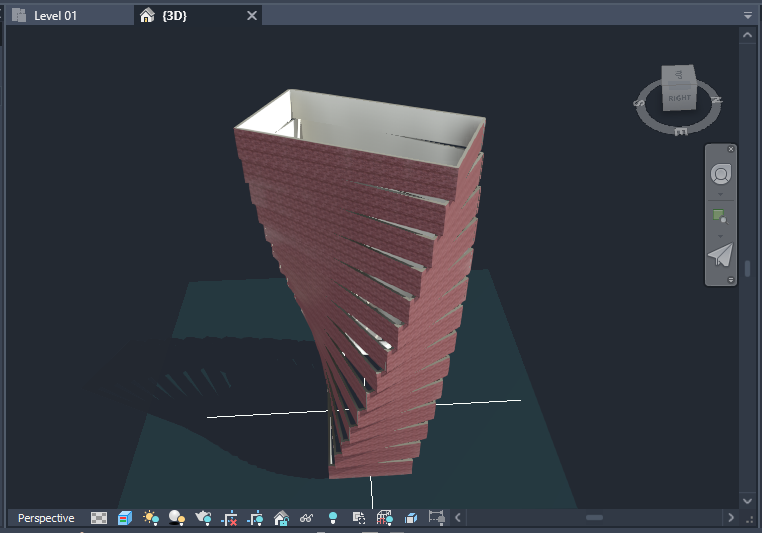
- In Revit: Look at the origin point. A twisting tower structure will be created on all levels above your base level.
- In Paracore Desktop: The Console Tab will show:
Created twisting house on X levels starting from: Level 1
Next: Explore the Script Gallery features in depth.