AI-Powered Debugging
Paracore includes a built-in AI assistant designed to help you debug Revit API scripts in seconds. This feature, known as Explain & Fix, uses an LLM (Large Language Model) to analyze execution errors and suggest immediate code corrections.

The "Explain & Fix" Workflow
When a script fails to execute or compile, a red Explain & Fix button appears on the far left of the Console Tab footer. Clicking this button initiates the following process:
1. Analysis
The AI scans your execution project. It automatically maps the logic residing inside your Scripts/ folder.
- For Modular Projects, it analyzes the entire folder context to understand how your classes and entry points interact.
2. Explanation
In the Explain & Fix window, the AI provides a natural language summary of why the code failed.
- It translates complex Revit API or C# exceptions into simple, easy-to-understand explanations.
- It identifies the specific line and file where the error occurred.
3. Suggested Correction
The AI generates a complete rewrite of the affected file(s).
- Code View: You will see the filename followed by the full, corrected code in a syntax-highlighted editor.
- Review: The code is read-only, allowing you to review the AI's logic before committing the change.
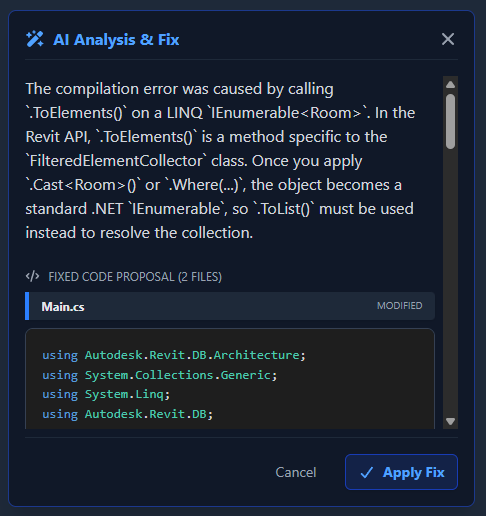
4. Direct Application
Click the Apply Fix button to commit the changes. Paracore handles the file updates directly:
- Single Source of Truth: The fix is applied directly to the source code file(s) within your script project.
- IDE Sync: If the project is currently open in VS Code, the changes will reflect immediately in the editor.
In both cases, once you click Apply Fix, you can immediately return to the Parameters Tab and click Run Script again to verify the solution.
Privacy & Connectivity
Connectivity & Configuration
This feature requires an active internet connection and configured LLM settings in the Settings menu.
- Supported Providers: Currently, only Google Gemini (models 2.5 and 3.0) and OpenRouter are fully implemented.
- Other Providers: While Anthropic, DeepSeek, and OpenAI are listed in the settings menu, they are not yet active and will be supported in future updates.
Data Privacy & Usage Advisory
When you use Explain & Fix, your script source code and error logs are transmitted to the active AI provider (e.g., Google Gemini, OpenAI) for analysis.
- Educational Use Only: This feature is intended for Learning and debugging standard Revit API workflows.
- Proprietary Code Warning: If you are working on confidential, proprietary, or trade-secret algorithms, we do not recommend using this feature, as third-party providers may use submitted data for model training depending on their policies.
- Your Risk: Use this feature with the understanding that you are sharing your code logic with the AI provider.
Note: Your Revit Model Data (geometry, element parameters, project files) remains entirely local and is never transmitted to the cloud.
Next: Learn about the core Script Execution lifecycle.