VS Code Integration
Paracore provides a professional development experience by leveraging Visual Studio Code. In V4, Paracore uses a Single Source of Truth model, where your IDE interacts directly with the same files that Revit executes.
The Project-Based Model
For a professional C# experience, IntelliSense requires reference assemblies and project metadata. Paracore handles this automatically by generating in-place Workspaces directly inside your script folder.
Project Anatomy
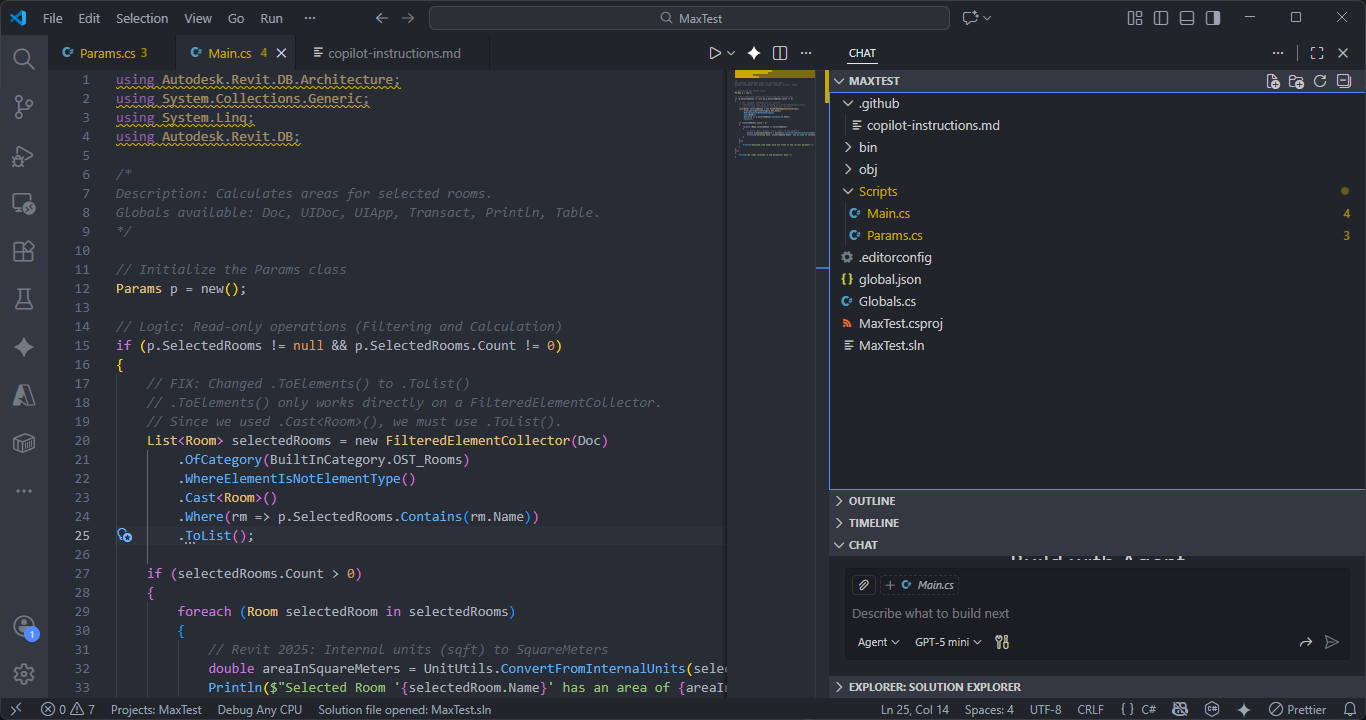
When you click Edit Script, Paracore scaffolds the following professional project files:
[ScriptName].csproj: The C# project file that handles Revit API and Paracore library references.[ScriptName].sln: The solution file for the project..editorconfig: Enforces strict, professional C# coding styles (Allman braces).Global.cs: Provides IntelliSense for injected globals and extension methods.Scripts/(Folder): The designated home for your C# source code. All executable script files must reside in this folder.
Unified Development Workflow
Whether you are managing a large library in the Paracore Gallery or working on a standalone tool, the workflow is now unified and direct.
1. Direct Editing
When you click Edit Script, Paracore opens the script's folder directly in VS Code.
- No Temporary Files: There are no copies or temporary directories. You are editing the final source code.
- Instant Synchronization: Changes saved in VS Code are immediately available to the Paracore engine without needing periodic "sync" or "file-watching" cycles.
2. Isolation vs. Intellisense
The project files (.csproj, .sln, etc.) coexist with your code but are logically separated.
- The Execution boundary: The Paracore engine only looks inside the
Scripts/folder for code to compile. - Clean Library: You can click Remove Scaffolding in the Paracore UI at any time. This deletes the IDE-specific files while leaving your
Scripts/folder and its source code intact and ready for execution.
Global Helpers & Extensions
Paracore injects a rich set of globals and extension methods to simplify Revit automation.
Injected Globals
| Helper | Description |
|---|---|
Doc | The current active Revit Document. |
UIApp | The Revit UIApplication instance. |
Println(msg) | Prints a message to the Console. |
Transact(action) | Automatically handles Revit Transactions. |
Visualization API (Analytics Tab)
| Method | Description |
|---|---|
Table(data) | Renders data as an interactive grid. |
PieGraph(data) | Renders a high-contrast pie chart. |
BarGraph(data) | Renders a high-contrast bar chart. |
LineGraph(data) | Renders a line chart for trends. |
Precision & Math Extensions
| Method | Description |
|---|---|
.Round(n) | Rounds a number to 'n' decimal places (fluent). |
IsLessThan(n) | Fluent comparison for Revit units. |
IsGreaterThan(n) | Fluent comparison for Revit units. |