Visual Query Builder
The Visual Query Builder (VQB) is a professional-grade low-code engine designed to generate high-performance Revit filtering logic without writing a single line of C#. It transforms element selection from a manual coding task into a surgical, visual workflow.
High-Performance Logic Generation
Unlike standard iteration, the VQB generates optimized C# code that leverages the Revit API's native ElementParameterFilter and FilteredElementCollector. This ensures that even queries targeting tens of thousands of elements execute with near-zero overhead.
Key Capabilities:
- Hierarchical AND/OR Logic: Nest multiple conditions into complex logical trees.
- Prefix-Aware Naming: Automatically aliases parameters (e.g.,
RoomName,WallMark) to ensure unique C# properties and error-free compilation. - Strict Nullability: Generated parameters are nullable (
double?,string?), allowing the engine to safely skip empty UI values and prevent "matching empty string" errors. - BIM Precision: Preserves trailing zeros (e.g.,
6.00) across the entire pipeline to maintain Revit's numerical accuracy.
The Entry Point: New Script Modal
The New Script Modal is your gateway to the Visual Query Builder. It's designed to streamline the creation of high-performance tools by providing two distinct paths:
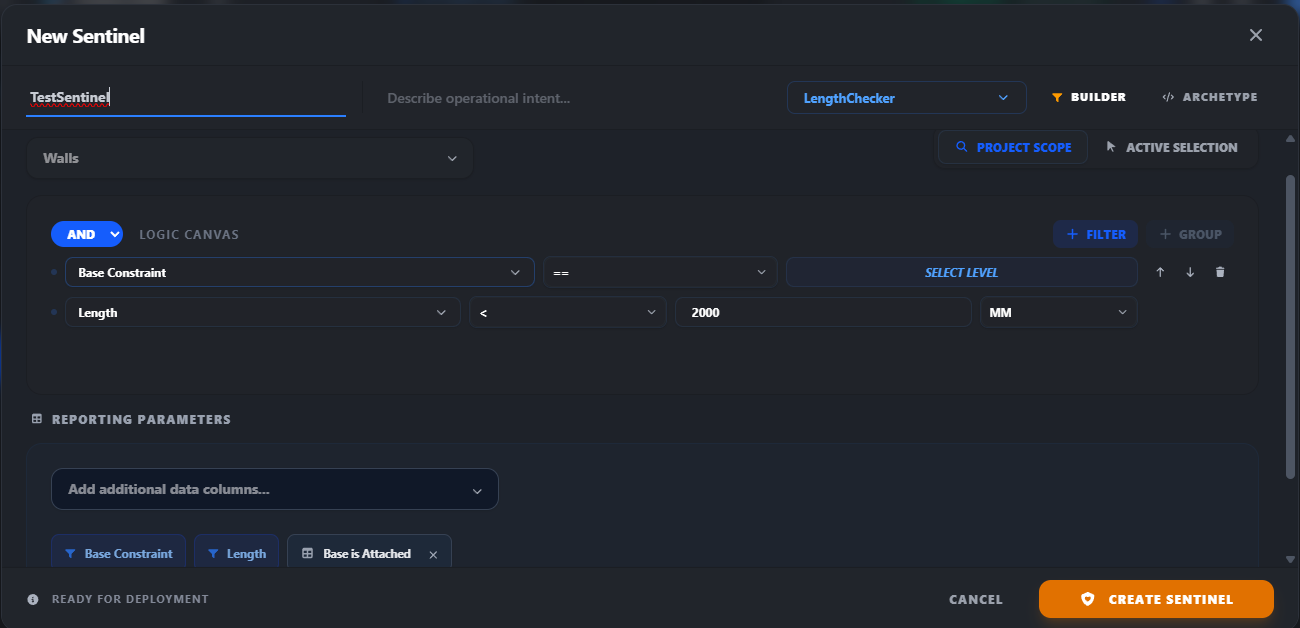
- Generate with Builder: The primary low-code path. Define your categories, filters, and columns visually, and Paracore will generate the optimized C# logic for you.
- Starting Templates: Alternatively, you can select an existing template to use as a starting point. This is ideal for quickly bootstrapping a script that you intend to further customize in VS Code.
Building a Pro-Grade Query
- Launch the Modal: Click the New Script button in the Script Gallery.
- Open the Builder: Ensure the "Builder" tab is active.
- Context Selection: Choose between Project Scope or Active Selection to define where your query starts.
- Category Targeting: Select your primary Revit category (e.g., Rooms, Mechanical Equipment).
- Add Filter Rules: Create rules based on any Revit parameter. The UI provides dynamic dropdowns for Operators and Units (mm, m, in, etc.).
- Select Reporting Columns: Choose which data fields you want to see in your results table.
Using the Template Gallery
The VQB is integrated with a Template Gallery that allows you to reuse proven logic:
- Save as Template: Paracore automatically saves your query graph inside the generated
.csfile as a// __PARACORE_QUERY_DATA__metadata block. - One-Click Loading: When creating a new script, use the Template Selector dropdown to start from an existing query.
- Surgical Replacement: Use the "Replace Code" feature on any script to open its original graph, tweak the values, and redeploy instantly.
The Visual Query Builder isn't just a filter; it's a way to visually program the Revit API.